Reporters#
This chapter is for you if something is wrong with the software and you want it fixed. You do not need an account to read a public project’s issues; you need one to report anything, and getting one takes a minute.
Everything here happens in a browser. Nothing in this chapter requires you to understand the tracker’s process, the states an issue walks or who is responsible for what – those are in Developers, and you are welcome to read them, but a good report does not depend on them.
An account#
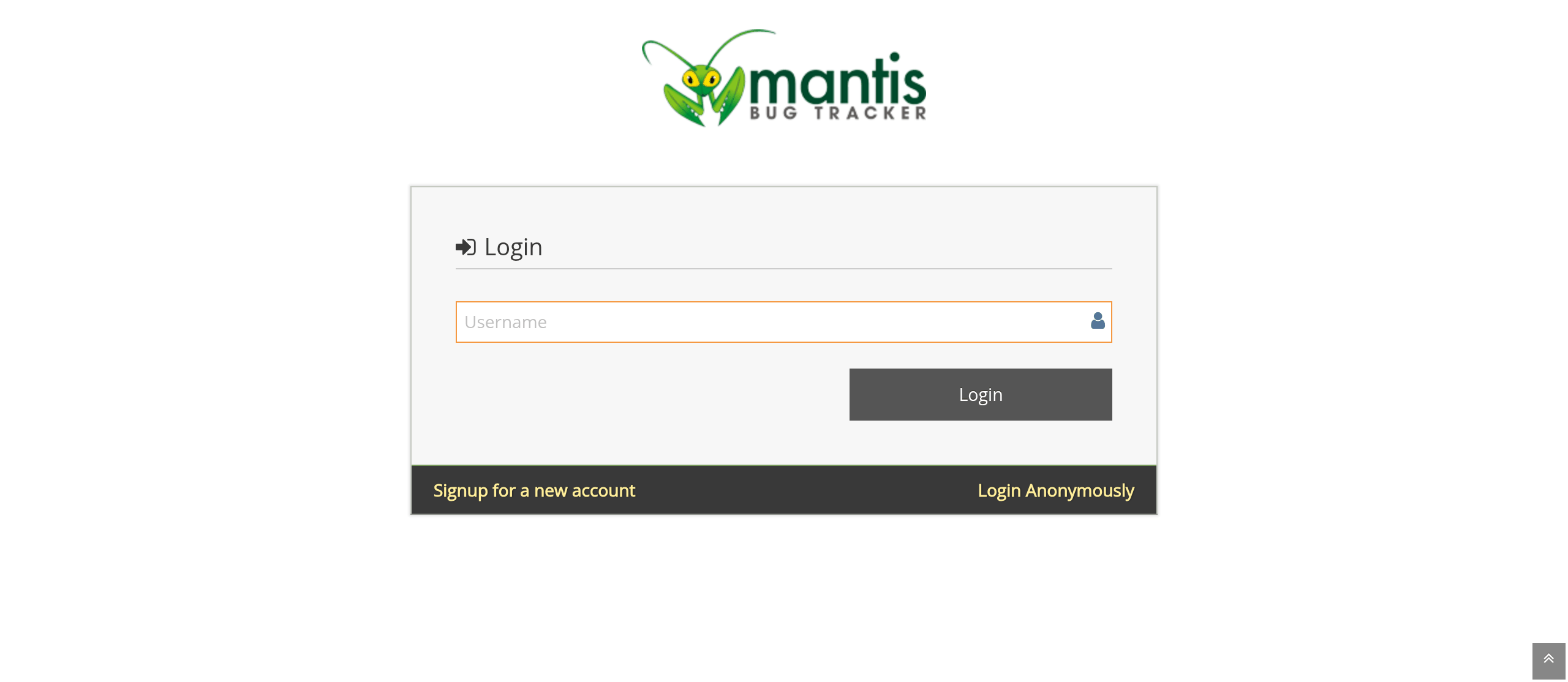
Figure 1 The login page. Your name first, your password on the next page.#
Unless the tracker lets visitors browse without an account, its front page is the login page; where it does, the front page is the issue list and the login is a button at the top left. The login has two steps: your user name (or the e-mail address you signed up with), then your password. If the account requires a one-time code – which some projects do for their developers and managers, see Two-factor authentication – a third step asks for it.
Signing up#
If the tracker allows it, the login page carries a “Signup for a new account” link.
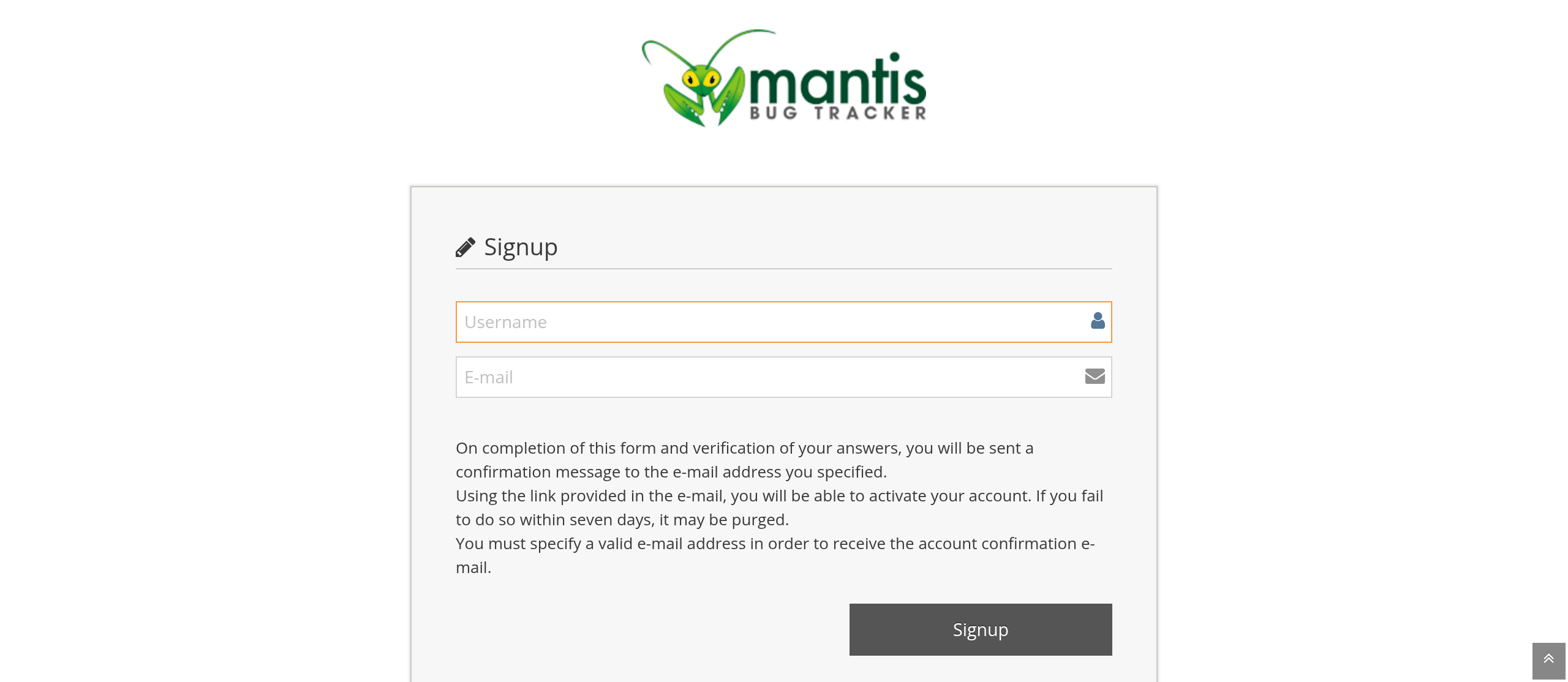
Figure 2 Signing up: a user name and an e-mail address, nothing else.#
You give a user name and an e-mail address. The tracker sends a message with a link that confirms the address and lets you set your password; the link works once and expires. Until you follow it, the account exists but cannot log in. If the message does not arrive, look in the spam folder before asking an administrator: the tracker sends from its own address and a fresh sender is often filtered.
An address that is already in use, and an address at a throwaway mail provider that the administrators have blocked, are both refused.
Forgetting your password#
“Lost your password?” on the login page sends a link to the address of the account. It also works once, and there is a limit on how often one may be asked for: a flood of requests to the same address is refused for a while rather than delivered.
Changing your password in My Account ends every session the account
has open, on every device, and changes the key in your RSS links. That
is deliberate: if you are changing your password because somebody else
may have it, half a measure is worse than none.
Two-factor authentication#
The OTP tab of your account pages switches on a one-time code – the
six digits an authenticator application (Google Authenticator, FreeOTP,
Aegis and the like) shows for thirty seconds.
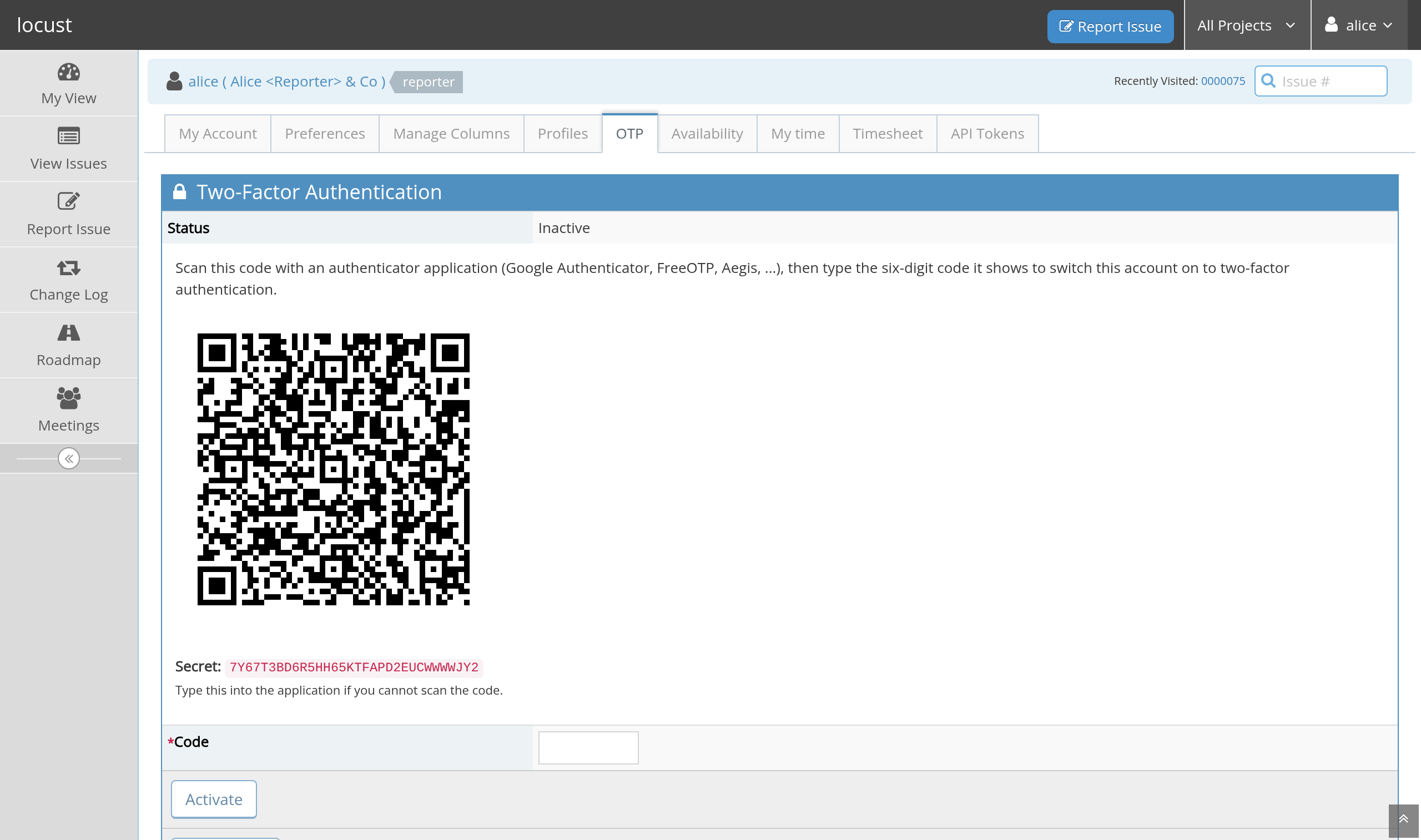
Figure 3 Switching on two-factor authentication: scan the code, then type what the application shows.#
Scan the QR code with the application, type the code it then shows, and
press Activate. From then on, logging in asks for the password and
then for a current code. A new secret can be put in its place at any
time and stays pending until one of its codes confirms it, so a failed
attempt never locks you out: the old secret keeps working until the new
one is proved.
Some projects require two-factor authentication from a certain access level upwards. If yours does and you switch it off, your level in that project is lowered until you switch it on again – the tab says so. A lost device is an administrator’s job: they can deactivate the requirement on your account so that you can set it up afresh.
Before you report#
Look for it first. Two reports of one bug cost somebody the work of finding that out, and the second one usually carries less detail than the first.
The quickest search is the box at the top right of every page: a number
there jumps straight to that issue, and words search summaries and
descriptions. View Issues is the full list, with a filter box above
it; Developers describes the filter in detail, and for finding
out whether something is known, “all issues of this project whose
summary contains crash” is usually enough.
Two things worth knowing while you read:
In any text in the tracker,
#123is a link to issue 123 and~456a link to note 456. A struck-through issue link means the issue is closed.An issue you cannot see is not shown to you as “hidden”: it looks exactly like an issue that does not exist. If a colleague sends you a number that gives you nothing, the issue may be private or in a project you are not a member of; ask them, not the tracker.
Reporting an issue#
Report Issue in the menu opens the form. It asks for whatever the
project wants to be asked; a project that has simplified its form asks
for fewer things, and nothing you are not asked for is required.
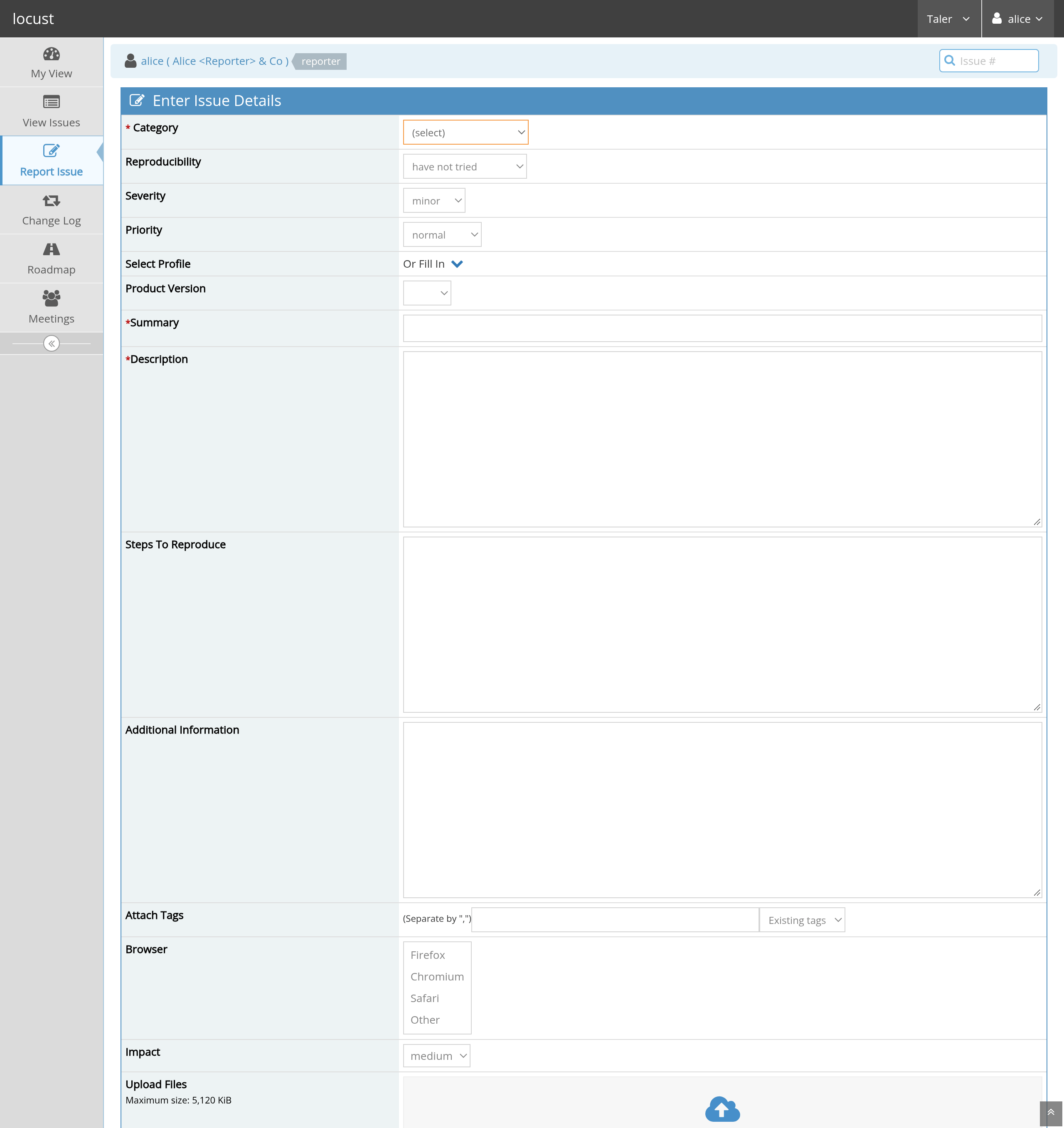
Figure 4 The report form of a project that asks for everything. A simplified project shows fewer rows; summary and description are always there.#
- Summary
One line that says what is wrong. It is what everybody sees in every list, in every mail and in every search result. “Crash” is useless; “Wallet crashes when the amount is 0” is a summary somebody can act on without opening the issue.
- Description
What happened, in as many words as it takes. Write what you did, what you expected and what happened instead. Paste the error message as text rather than as a picture of text: text can be searched, and the next person with your problem will search for it.
- Steps To Reproduce
The shortest sequence that makes it happen again. If you can get it down to three steps from a fresh start, do: an issue that can be reproduced is usually fixed, and one that cannot usually is not.
- Additional Information
Anything that does not belong above: the version, the configuration, what you tried, a link to a log.
- Category
Which part of the software it is about. If you are unsure, pick the general one; a triager will move it.
- Severity and Reproducibility
How bad it is, and how reliably it happens. Be honest rather than emphatic: severity is a description of the damage (“crash”, “minor”, “text”, “feature”), not a request for attention. Priority, which is what the team will work by, is the team’s to set – see Developers.
- Platform, OS, OS Version
The machine it happened on. If you report often, save these as a profile once (
Profilesin your account pages) and pick it from the dropdown instead of typing it again.- Visibility
privatemeans the issue is visible to you and to the project’s developers and above, not to the public. Use it for a report that contains data about a person, a credential or an unfixed security hole, and say in the first note why it is private.- Attachments
Screenshots, logs, a file that triggers it. The page says how large a file may be and how many. Do not attach anything you would not want a stranger to read: on a public project, an attachment of a public issue is public.
Below the form, some projects offer a Report Stay box. Ticked, the
form comes back empty after you submit, ready for the next one – which
is what you want when you are working through a list of findings.
After you press Submit Issue the tracker gives you the issue’s number.
Keep it: it is the name of this piece of work everywhere, in commit
messages, in mails and in other trackers.
If something about the form is wrong – a date it cannot read, a field it needs and did not get – the form comes back with everything you typed still in it, the fields to correct marked in red, and a list at the top of what to correct. You never retype a description because of a mistyped date. The one thing that cannot come back is a file you had chosen: a browser will not refill a file box, and the form says so where the box is. If somebody else edited the issue while you had the form open, the fields they changed come back offering both values, yours and theirs, so you can keep what you meant and take what they meant.
Following what happens#
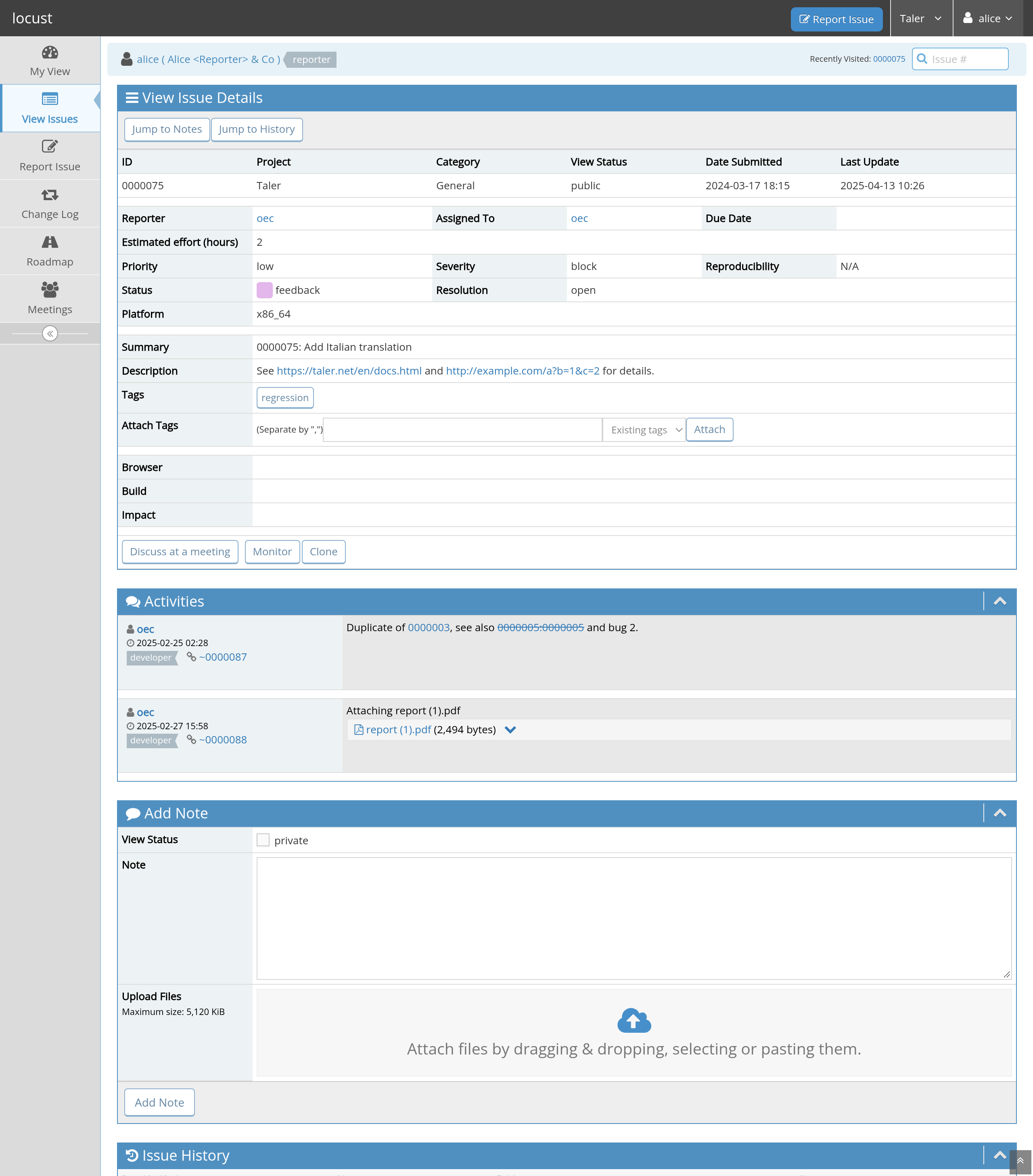
Figure 5 An issue: its fields, what was attached to it, what was said about it and, below, its whole history.#
The issue page shows the fields at the top, the activities (notes and attachments) under them, and the history at the bottom: every change anybody made, with who made it and when. Nothing is edited away – a corrected note shows that it was edited, and the earlier text is kept.
Notes#
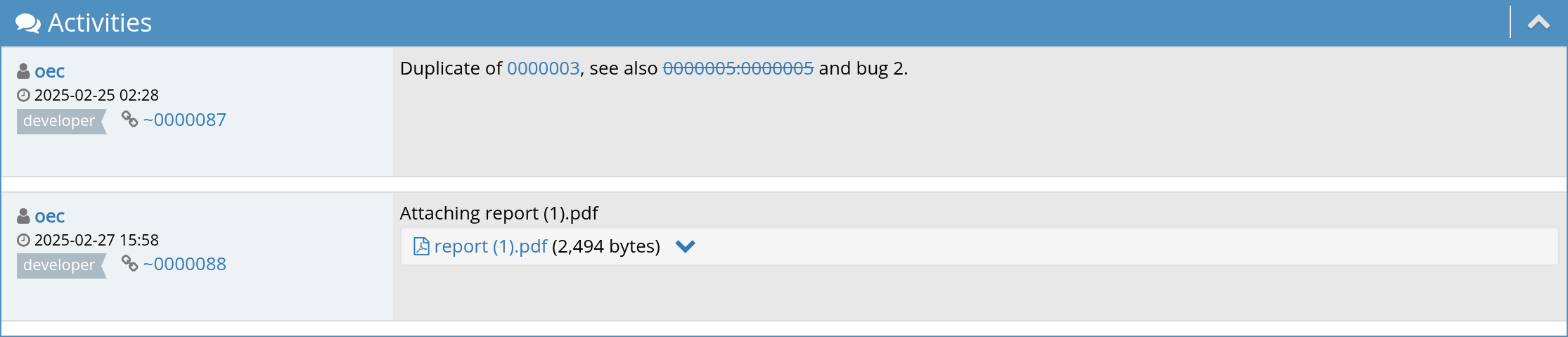
Figure 6 Notes: one person’s addition each, in the order they were written.#
Add Note at the bottom of the issue adds to the conversation. This is
where you answer a question, add the detail you forgot, or report that
the problem went away. A note can carry attachments of its own. A
private note is visible to the project’s developers and above, not to
the public and not to a reporter who is not one of them.
There are two ways somebody asks you something. In any project, setting
the status to feedback says that the issue is waiting for its reporter;
you answer in a note. In a project that runs the compliance process
(see Developers), a developer can also put a question to one
person by name: the issue page then shows it, your My View lists it
among the questions waiting for your answer, and the issue itself does
not move – it stays exactly where it was, with whoever had it. Answer
in the box beside the question.
An unanswered question is the commonest reason a bug report dies, so answer even when the answer is “I cannot reproduce it any more”: that is a useful answer and it closes the issue honestly.
Status#
The status says where the issue stands. In a plain project it is
MantisBT’s: new, feedback (somebody wants something from you),
acknowledged, confirmed, assigned, resolved, closed. Projects
that run the compliance process have more states, which Developers
describes; as a reporter, what matters is the same in both: feedback
means the issue is waiting for you, and resolved means somebody thinks
it is done.
When an issue is resolved it also gets a resolution: fixed,
duplicate, no change required, won't fix, unable to reproduce,
and so on. If you disagree with a resolution, say so in a note – the
issue can be reopened, and a short “this still happens on version X, here
is the log” is what it takes.
Monitoring, and mail#
Monitor on an issue tells the tracker to mail you about it. You are
mailed about your own issues anyway; monitoring is for everybody else’s.
End Monitoring stops it.
What you are mailed about, for which kind of change, is yours to set in
Preferences (next section). If the tracker’s mail is too much, narrow
it there rather than filtering it away in your mail client: a filtered
mail is a question you will not see.
Every list in the tracker is also an RSS feed; the link at the top of the issue list carries a key that is yours. Treat that URL as a password: anybody who has it reads what you read.
Your account#
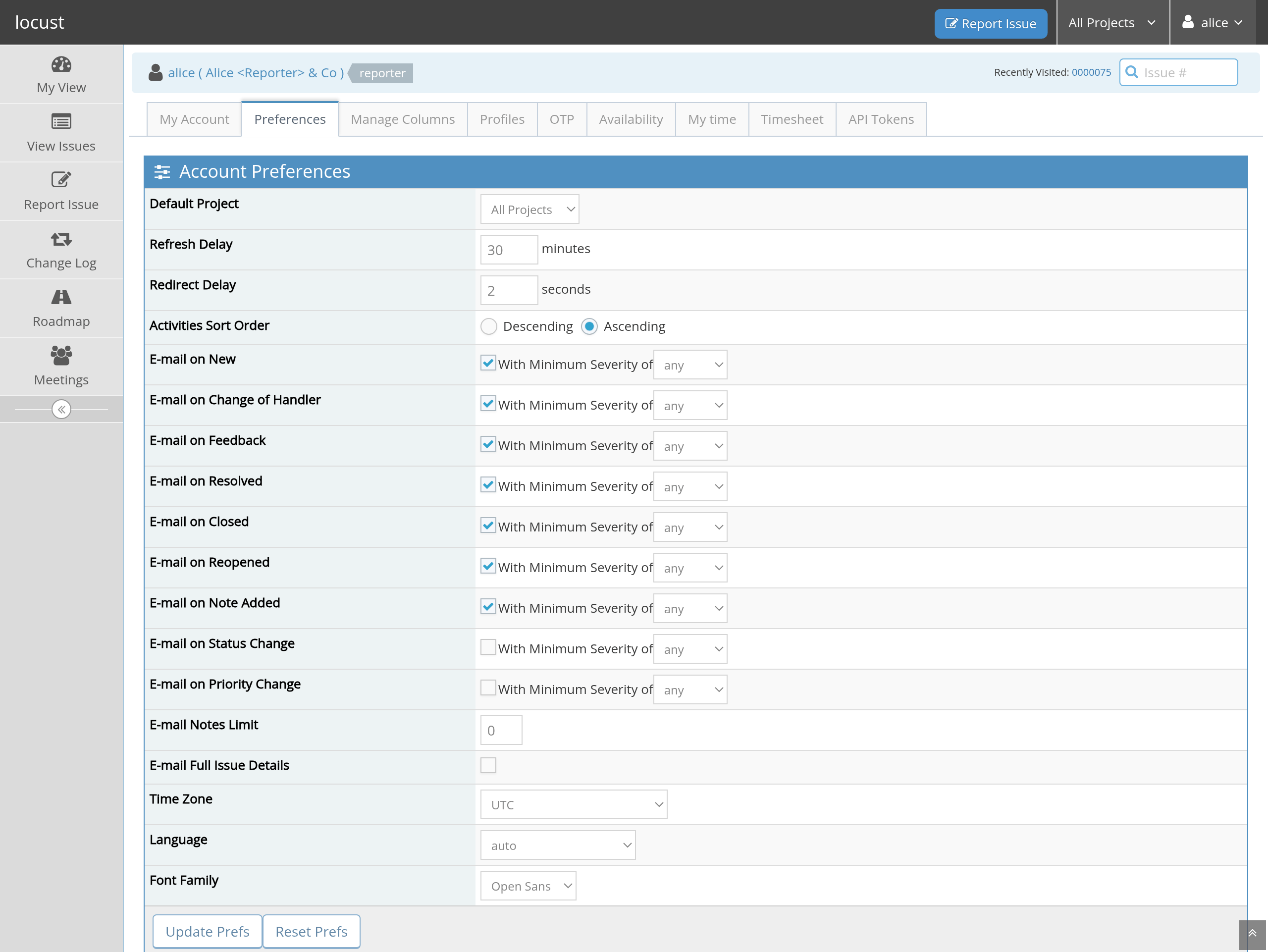
Figure 7 Preferences: language, time zone, what you are mailed about, and how much of it.#
The tabs of your account pages:
My AccountYour real name, e-mail address and password.
PreferencesLanguage and time zone – every date in the tracker is shown in the zone you set here – the project and the page you land on, how many notes a page shows, whether the newest note comes first, and the notification settings.
Manage ColumnsWhich columns the issue list, the printed list and the CSV export show, and in which order.
ProfilesThe machines you report from (platform, operating system, version), so that the report form can fill them in.
OTPTwo-factor authentication, as above.
AvailabilityThe hours you work. This matters for developers, whose work the planning views schedule; as a reporter you can ignore it.
API TokensFor scripts that talk to the tracker on your behalf; see Integrators.
My View is the page you will use most.
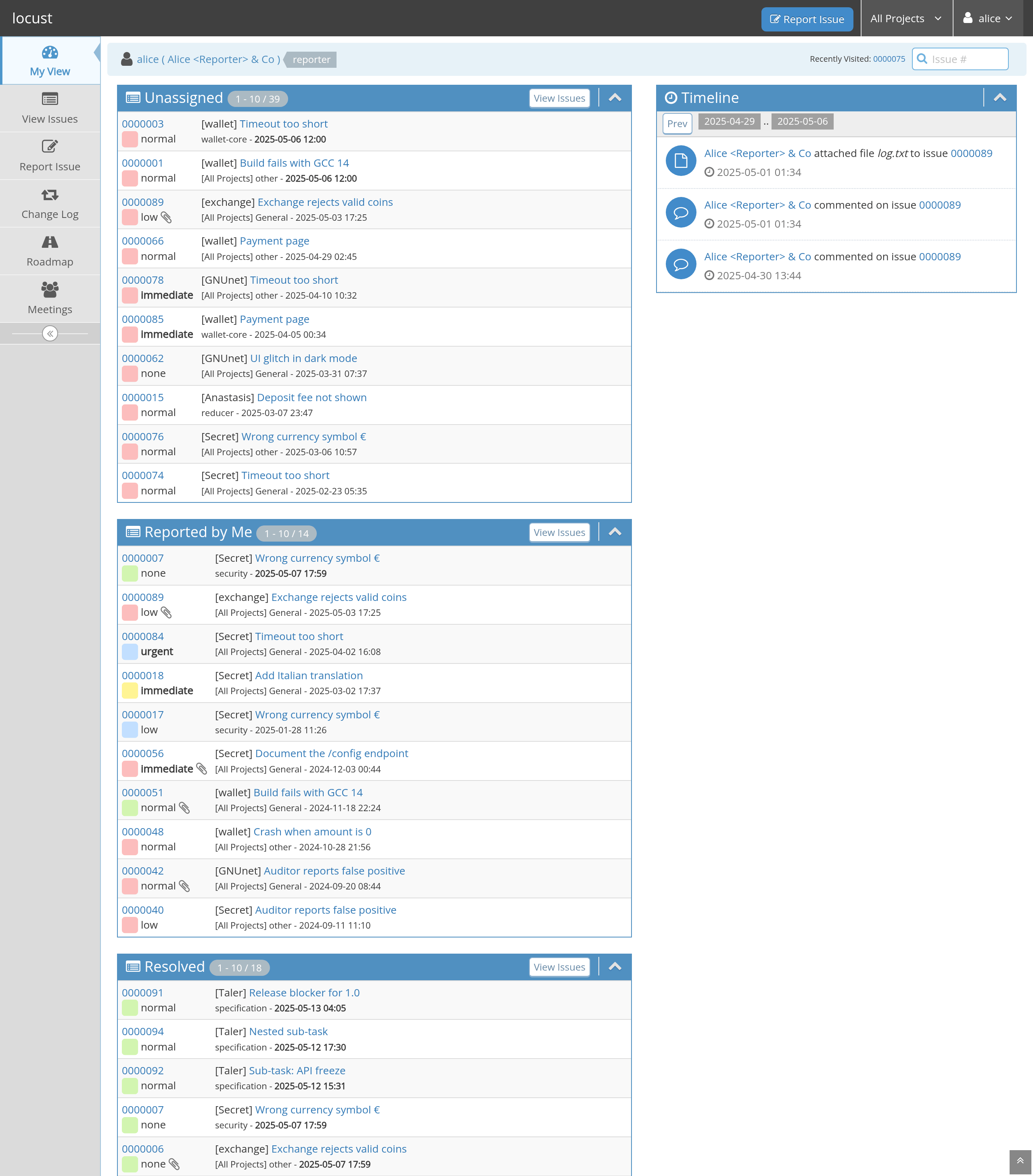
Figure 8 My View: what is waiting for you, what you reported, what you watch.#
It collects the issues that are yours in some way: assigned to you, reported by you, waiting for your feedback, monitored by you, recently modified. The boxes can be collapsed, and what you collapse stays collapsed on your next visit.
A good report, in one list#
One problem per report. Two bugs in one issue means one of them is forgotten.
A summary that says what is wrong, not that something is wrong.
The version, and whether it used to work.
The shortest way to make it happen again.
The error message as text.
An answer when somebody asks you something, even a disappointing one.
No report that only says “it does not work” – it is the one kind of report nobody can do anything with, and writing one more line would have made it actionable.