Developers#
This chapter is for the people who do the work the tracker tracks. It assumes you have an account and can find an issue; Reporters covers that. What follows is the process – the states an issue walks and who may move it, how work is taken up and measured, how the tracker decides what you should do next, and what a trivial change may skip.
Not every project uses all of it. A project is either a plain one, which behaves exactly like MantisBT, or one that runs the compliance process, which has more states, named roles and a clock. The project page says which; this chapter marks what belongs only to the process.
Finding the work#
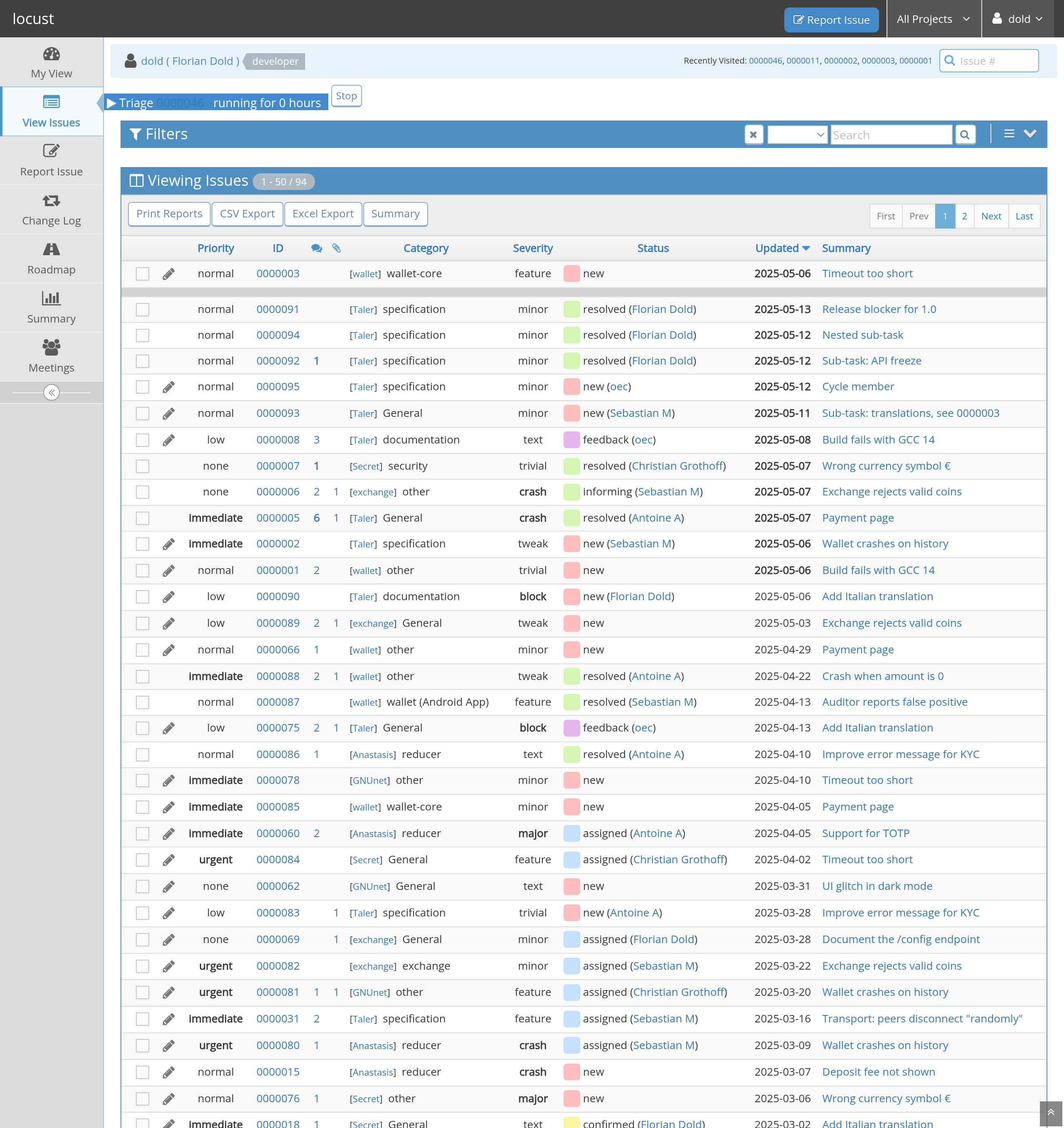
Figure 9 View Issues: the current filter, the columns you chose, and the
actions you can apply to a selection.#
The issue list is one filter and one page of results. The filter box above it is collapsed until you open it; what you set there stays set for your session and for that project.
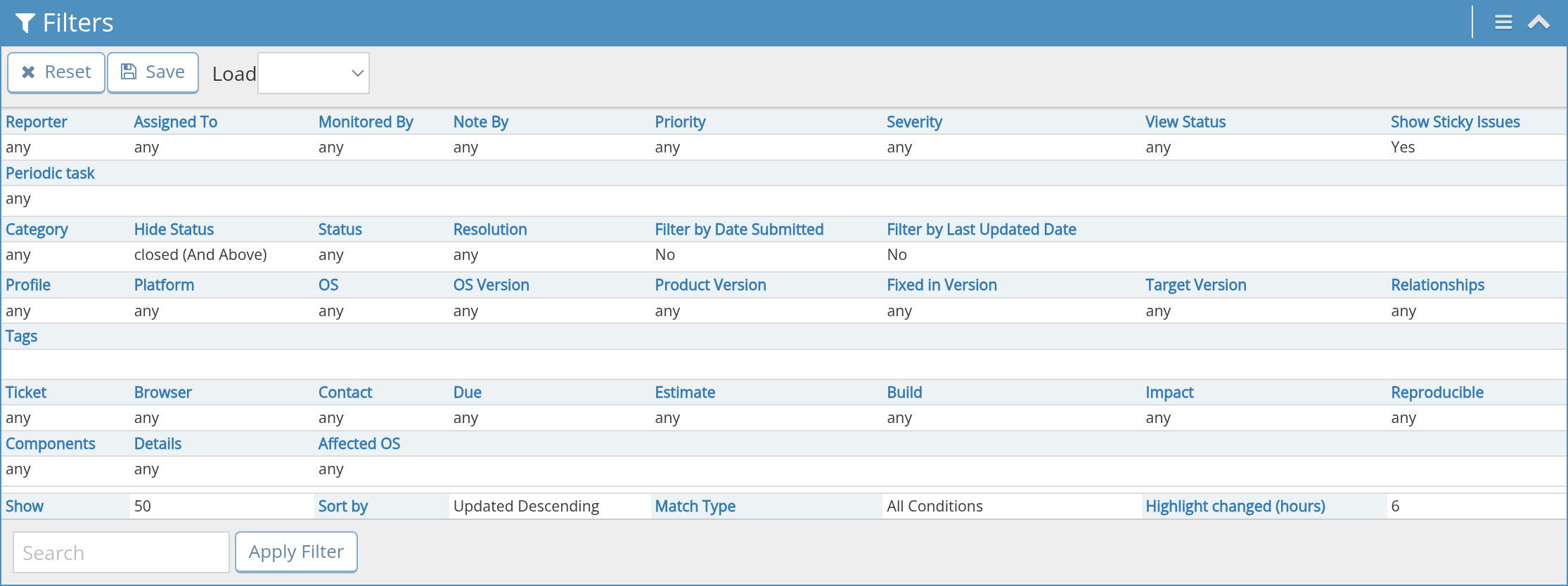
Figure 10 The filter: every field of an issue, plus the tracker’s own – deadlines, periodic tasks, fast-track where the process runs.#
A few things in it are worth knowing:
Several values in one criterion are an or, and several criteria are an and: status
assignedorconfirmed, and handler you.[any]means the criterion is not applied, which is not the same as “empty”; to find issues with no target version, pick the explicit “none” entry where one is offered.A filter can be saved under a name (
Save Current Filter), and a saved filter can be made public, which puts it in everybody’s list for that project. That is how a team keeps “the queue” or “waiting for release” in one place instead of in everybody’s memory.Showis how many issues one page lists, and 250 is the most one page shows, whatever you type there: a page of several hundred issues is one a proxy in front of the tracker may refuse to pass on. Use the page links, or the print view and the CSV export, which are not paged.Manage Columnsin your account pages decides which columns this list, the print view and the CSV export show.The list is also a CSV, an Excel workbook, a Word document, a print view and an RSS feed; the buttons are above the list.
#123 in any text is a link to the issue, ~456 to a note, and the
Issue # box at the top right jumps to a number directly.
The life of an issue#
A plain project uses MantisBT’s statuses: new, feedback,
acknowledged, confirmed, assigned, resolved, closed. Who may
set which is per-status configuration, and the project’s workflow
decides which status may follow which.
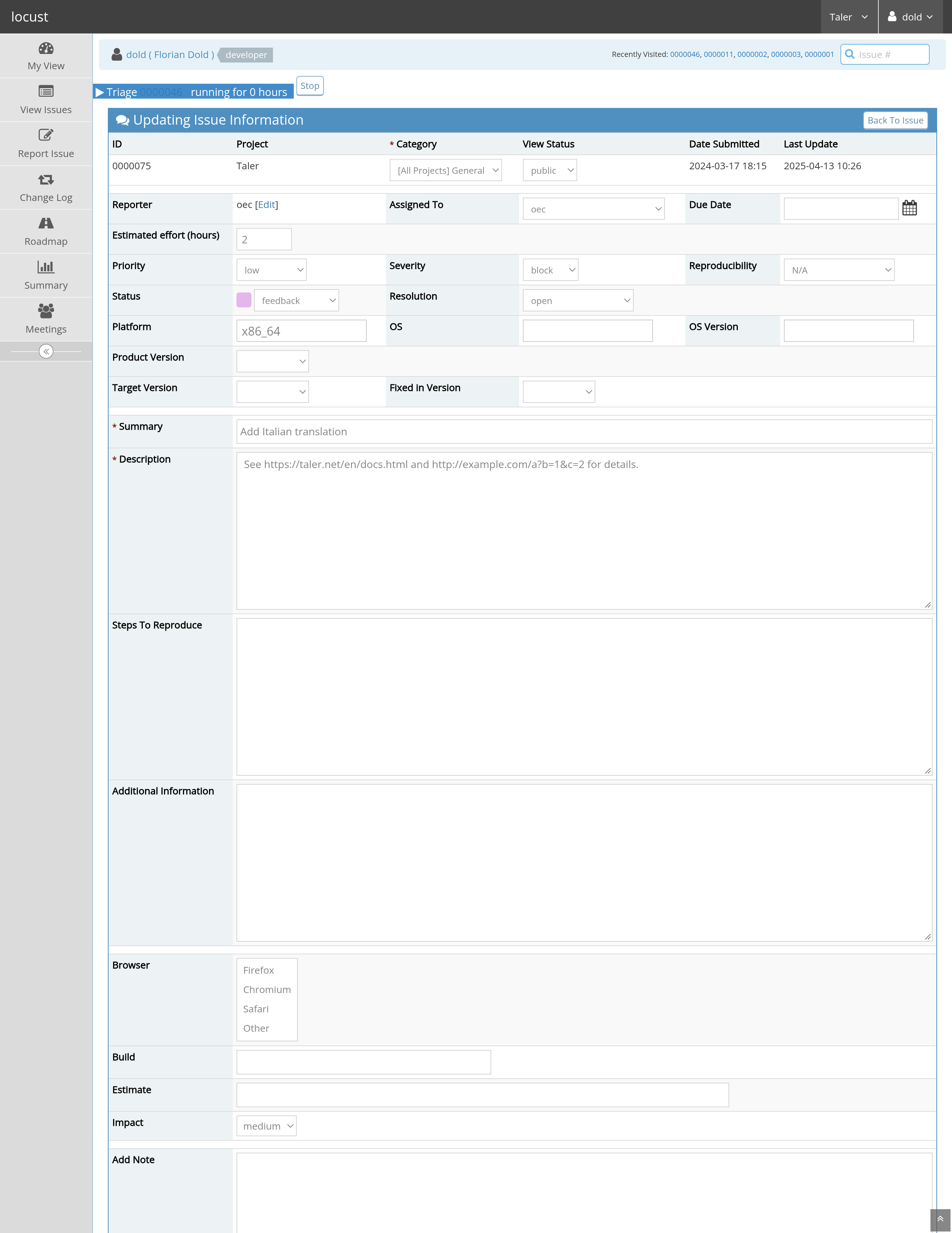
Figure 11 Edit on an issue: every field at once. The buttons on the issue
itself make the single moves; this page is for the rest.#
A project running the compliance process uses ten, and every state is
named after the work that is due in it, so the chain reads forwards:
an issue in reviewing is waiting to be controlled.
Code |
Status |
What is due in it |
|---|---|---|
10 |
new |
Reported, nobody has looked at it yet. |
15 |
planning |
Working out what it takes: the estimate, the children it breaks into, who does the steps. |
30 |
acknowledged |
The management agrees the work should be done. |
40 |
implementing |
The plan is done and the change is to be written. |
60 |
reviewing |
The change exists and is to be controlled, by somebody other than its implementer. |
65 |
integrating |
It is controlled and is to go into a release. |
70 |
deploying |
The release is signed and is to be brought out. |
75 |
verifying |
It is where users meet it, and somebody is to establish that it does what the issue asked. |
80 |
informing |
It is demonstrably effective, and whoever has to be told is to be told. |
90 |
closed |
Done. |
Two codes are no longer in the chain and still read in the history of an issue that passed through them: 50, “assigned”, which 40 absorbed – what distinguished it from “confirmed” was the handler, and the handler is now a free-standing fact – and 86, “informed”, which 90 absorbed, because what records that somebody was told is the notification list and the two authority ticks, not a state.
Code 80 keeps its meaning as well as its number: it is MantisBT’s
resolved, the point at which the change is demonstrably effective, so
the changelog, the roadmap and the “resolved” notification are
unchanged. No threshold moved either – entering 70 is still the
signature of a release and so still the management’s.
The buttons on the issue page are the moves: Start Planning,
Implemented, Controlled, Integrated, Deployed, Verified,
Verified. Each says what the move records, so Implemented sets
the issue to reviewing: what has just happened is the implementation,
and what is now due is the control. Each is offered only to somebody
who may make that move,
and the project’s workflow matrix is enforced when the form is
submitted, not merely when it is drawn: a transition the matrix does not
name is refused however the request reaches the tracker. The same
thresholds hold through the API, which is locust’s own strictness:
MantisBT’s own update checks only that you may change a status at all
and never which one.
One edge the chain does not name is always there: the way back to the
furthest the issue has got. An issue remembers the highest status it
has ever reached, and that status is offered in the select wherever the
issue now sits, so a status picked by mistake is undone in one move by
whoever may set it – no colleague, no detour through the chain. Pick
acknowledged when you meant reviewing, and informing is still in
the select to go straight back to.
It restores the edge and not the threshold: entering deploying is the
signature of a release and stays the management’s on the way back as on
the way forwards. And it does not walk the steps it skips again –
going back from implementing to deploying does not ask for a second
control, because the first one happened and the reviewer is on the
issue. Where the issue went back because a control rejected the
change, and the change was then altered, remember that the way back
skips the review of what you altered; the history shows it, and it is
your call to walk the chain instead.
Closing is normally the management’s. The exception is an issue that
has nobody left to tell: both authority questions answered “no” and
nothing on its notification list. Such an issue has nothing to record
in informing, so from there it closes at the level informing
itself asks, and a developer may close it. One addressee on the list
is enough to make it the management’s again – ticked or not, because
an addressee means somebody had to be told and informing is the state
in which they are told; the ticks document what the communicator did
and lock nothing. Closing from anywhere earlier is ending work that was never
done, which needs a resolution and a reason and stays the management’s.
Who does what#
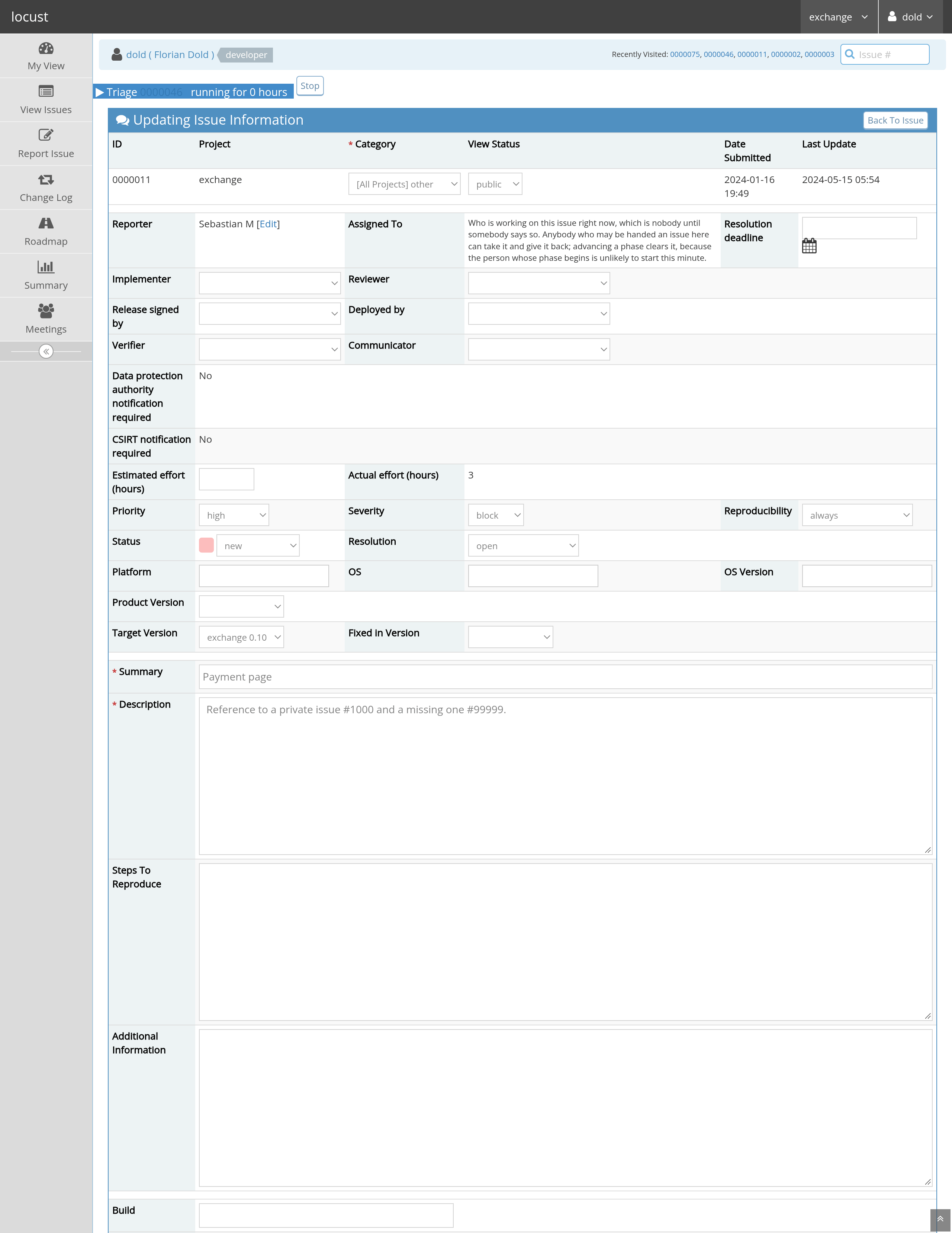
Figure 12 In a compliance project the update page asks for the roles instead of a single “Assigned To”.#
Each phase of the chain has a role that owes it, and the role fields are the plan: who will do each phase.
Four people, each a field of the issue:
- Implementer
Writes the change.
- Reviewer
Controls it. Never the implementer – the tracker refuses it.
- Verifier
Checks that what was asked for is what was delivered. A project can require that this is not the implementer either (“Verifier is not the implementer” on the project page); by default it may be.
- Communicator
Tells whoever has to be told. A project can name a default communicator, so a new issue has one from the start.
Whoever advances an issue out of a phase is recorded as having done it, overwriting whoever the plan named – unless the same submission names somebody for that role, which is a deliberate statement and is kept. The plan is corrected by what happened rather than left as a wish, and every overwrite is in the history. There is no way to move an issue along without claiming its work, except by naming the person in the same submission; that is deliberate, and an installation where managers push issues along will find their names in the record, which is the correct outcome.
That is also where the separation of duties bites: the person recorded
as having implemented a change may not advance it out of reviewing –
it would make them their own reviewer – nor out of verifying where
the project asks for a separate verifier. The fast track is the one
exception: its extra edge skips the control, so whoever takes it is
recorded as having done nothing, which is what a skip means.
A phase may be entered with nobody named for it. A plan may name nobody, and an unowned phase is a fact to show – the Gantt has a lane for it – rather than an error to raise.
“Assigned To” – the handler – means what every reader already thought it meant: who is working on this now, and nobody until somebody says so. Nothing derives it, an ordinary update never moves it, and three buttons do three different things:
Assign to meSets you as the handler, in any state. Its opposite gives the issue back. Anybody who may be handed an issue here may press either.
Take this phaseNames you for the phase the issue is in, where the plan named nobody. It moves no status and does not say you are working on it: it says you will. The separation of duties applies, so the implementer is never offered the control of their own change.
Start time trackingDoes both and starts a clock. The commonest of the three, and the one to press when you are starting now.
Advancing a phase clears the handler, because the person whose phase begins is unlikely to start this minute and a stale assignment is worse than none – unless the plan names you for the next phase as well, in which case you are carrying on and are left on it. A mass Assign is refused in a compliance project altogether: assigning here is one of the gestures above, and moving an issue is what names somebody for a phase.
The lists follow the same rule: an issue is on the list of whoever owes
its current phase, so one in reviewing is on the reviewer’s and
nobody else’s, and one whose current phase names nobody is on no list
at all.
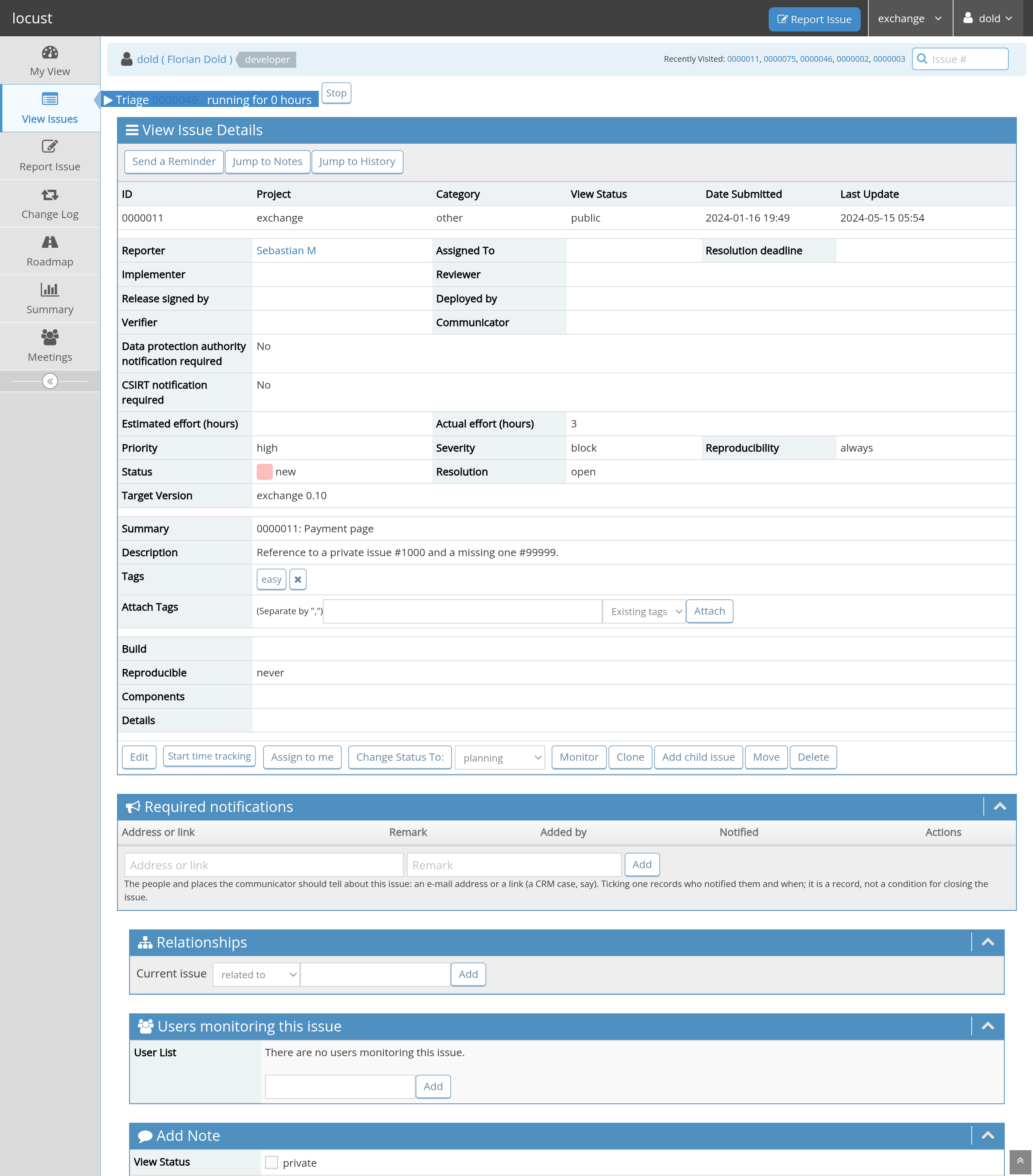
Figure 13 An issue of a compliance project: the roles, the plan, the estimate, the deadline and the notification list, beside MantisBT’s own fields.#
Planning#
An issue that is big is divided. Add child issue on the issue makes
one, inheriting what makes sense from the parent, and you name who plans
it: that person is on the hook for the child’s plan, and the child is
theirs from the moment it exists.
The plan box on the parent adds up the hours: this issue, its children,
and the two together. While any part is unplanned the box names it and
the plan cannot be finished – entering implementing is refused with
the list of what is missing.
Where a project requires an estimate, entering implementing is where
it is due as well, from planning or straight from new:
implementing is what asserts that the plan is finished, and the
workflow allows the direct edge. Closing needs no estimate, because
closing is not entering implementing – an issue that turns out not
to be work is no more estimable for having been looked at. An
installation that wants every issue planned removes new ->
implementing and acknowledged -> implementing on the workflow
page.
Estimates are hours, entered as hours. A project switches them on (“Effort estimates” on the project page); a compliance project always has them. An estimate is what the work is expected to take, not what you hope; the Graphs tab draws estimates against the effort actually recorded, and the point of that chart is to make estimating better, not to catch anybody out.
The clock#
Activity is not a status. Two people can work on one issue at the same time, a reviewer can read it while it is being written, and nobody takes it away from anybody by pressing a button. What the tracker records is runs: a person, a piece of work, a start and an end.
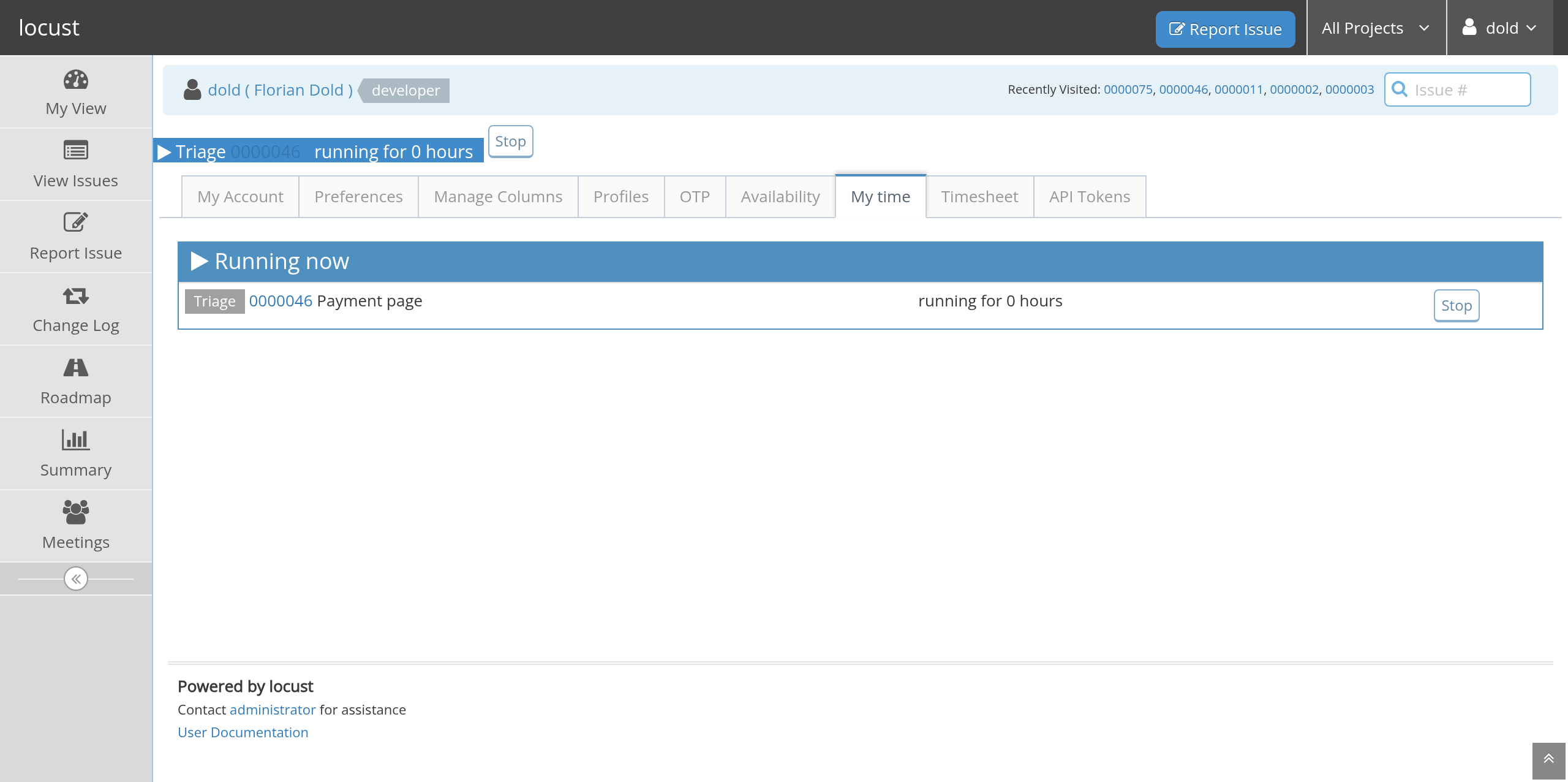
Figure 14 My time: what is running, and the runs waiting for confirmation.#
Start time tracking on an issue starts a run. It ends whatever you had
running – a person has one open run, because one person does one thing
at a time – and it fills the handler and the phase’s role where either
is still empty, so taking up an unassigned issue assigns it to you
without a second form. Stop ends it. An activity that is not an
issue (a meeting, administration, training) is started on My time
itself from the project’s activity types.
A run’s kind follows the issue’s state, because the status already says which step the work is at: implementation, control, verification, deployment, release, communication, triage, planning.
Nothing reaches a timesheet until you confirm it. A stopped run
waits on My time with what was measured; confirming writes one record
per calendar day it touched. Confirmation is the only moment the number
can be lowered – “I left it running over lunch” – and it can only be
lowered: a figure above what was measured is a claim, not a correction,
and is ignored. A single run of more than eight hours is not refused,
but it needs an explicit tick saying that it really was one spell of
work.
After confirmation the run itself is gone and only the per-day records remain. That is deliberate: start and end times say when somebody sat at their desk, which is a different question from how long the work took, and keeping them would be retention without a purpose.
A record is never edited. A correction is appended, with a reason that is always required, and the sheet then shows the corrected hours beside what was measured.
The Right now box on an issue shows who is working on it at this
moment. It is for coordination – so that two people do not start the
same thing – and it is the only place in the tracker where one person
sees another’s clock running.
Timesheets#
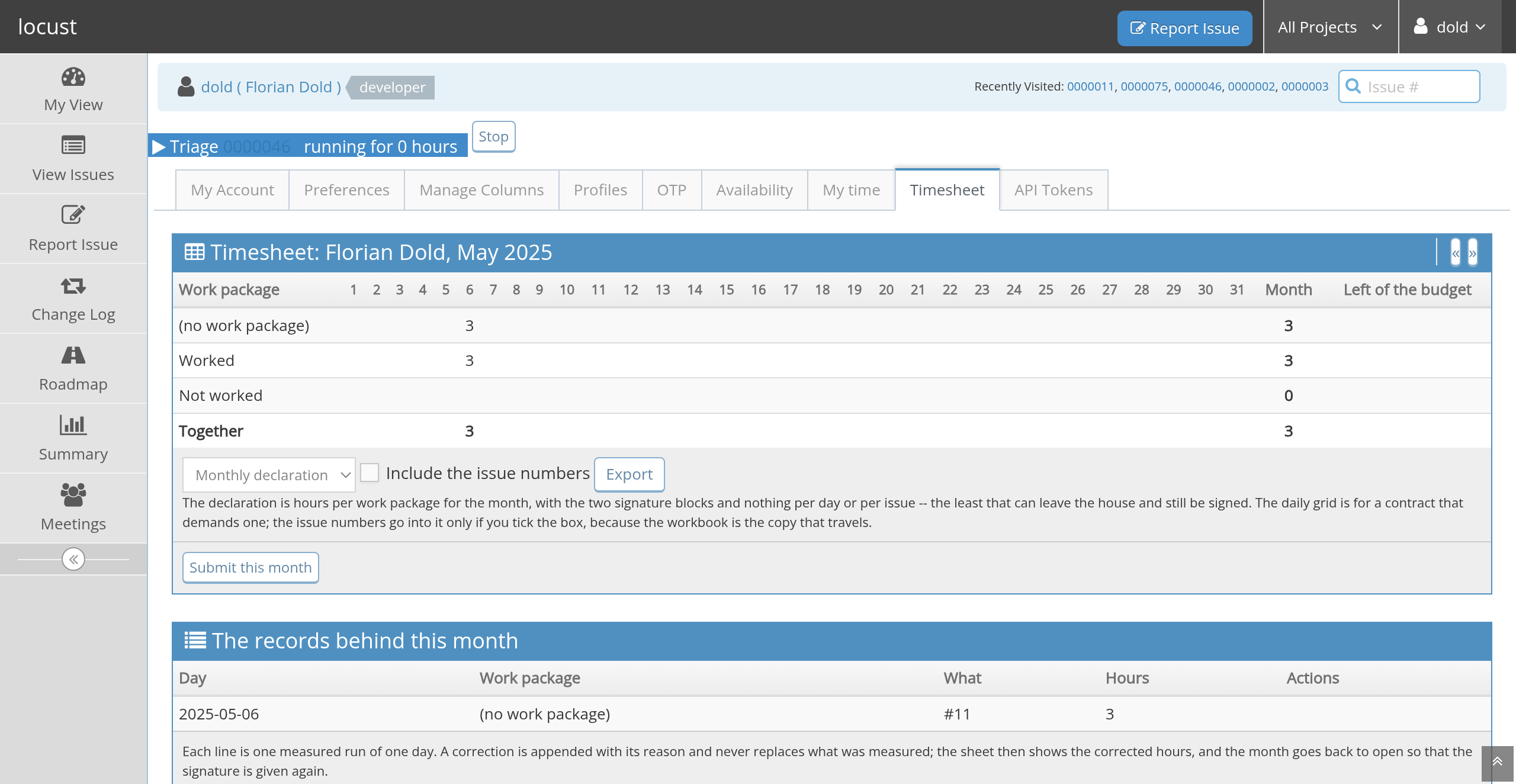
Figure 15 A month: hours per work package per day, what is left of each budget, and the records behind the figures.#
Your Timesheet tab shows one month at a time: hours per work package
per day, the month’s total, and how much of each package’s granted
budget is left. Below it are the records the figures are made of, each
one measured run of one day, with its corrections.
A work package is the contract or grant the hours are charged to.
Projects that answer to a funder define them (Managers), and some
require one before work starts: then Start time tracking asks you to classify
the issue first. An issue’s packages can be chosen later, as long as the
work has not been confirmed yet; the record keeps the classification the
run was confirmed against.
An issue answers to as many packages as the work does, and a package
names the people who may book to it, so Start time tracking behaves in three
ways:
One package that is yours to book to: nothing is asked, as before.
Several: the button becomes a small form – one choice per package, plus
Split itwith a percentage beside each. The percentages are whole numbers adding up to 100.None of them yours: you are told so and asked to see a manager of the project. Reviewing the issue, updating it and discussing it are not affected; only the clock is, because a run needs an account to go to.
The confirming dialog shows what each run is charged to and lets you change it before the minutes become records: at the start you say what you are about to do, and at the end you know what you did. A run split 70/30 over a day of 7:03 becomes two records, of 4:56 and 2:07, which add up to the day to the minute.
Submit this month signs the month off as the person who worked it. A
manager then approves it. Changing anything in a month that has been
submitted makes the submission stale – the sheet says so – and it has
to be submitted again, which is what a signature on a document means.
Export writes the month as a document: the monthly declaration is
hours per work package with the two signature blocks and nothing per day
or per issue, which is the least that can leave the house and still be
signed; the daily grid is for a contract that demands one. Issue
numbers go into it only if you tick the box.
Who has looked at the detail of your month is recorded, and you can see that list. A manager who asks for the issue-by-issue detail leaves a trace; approving a month does not need it.
What to do next#
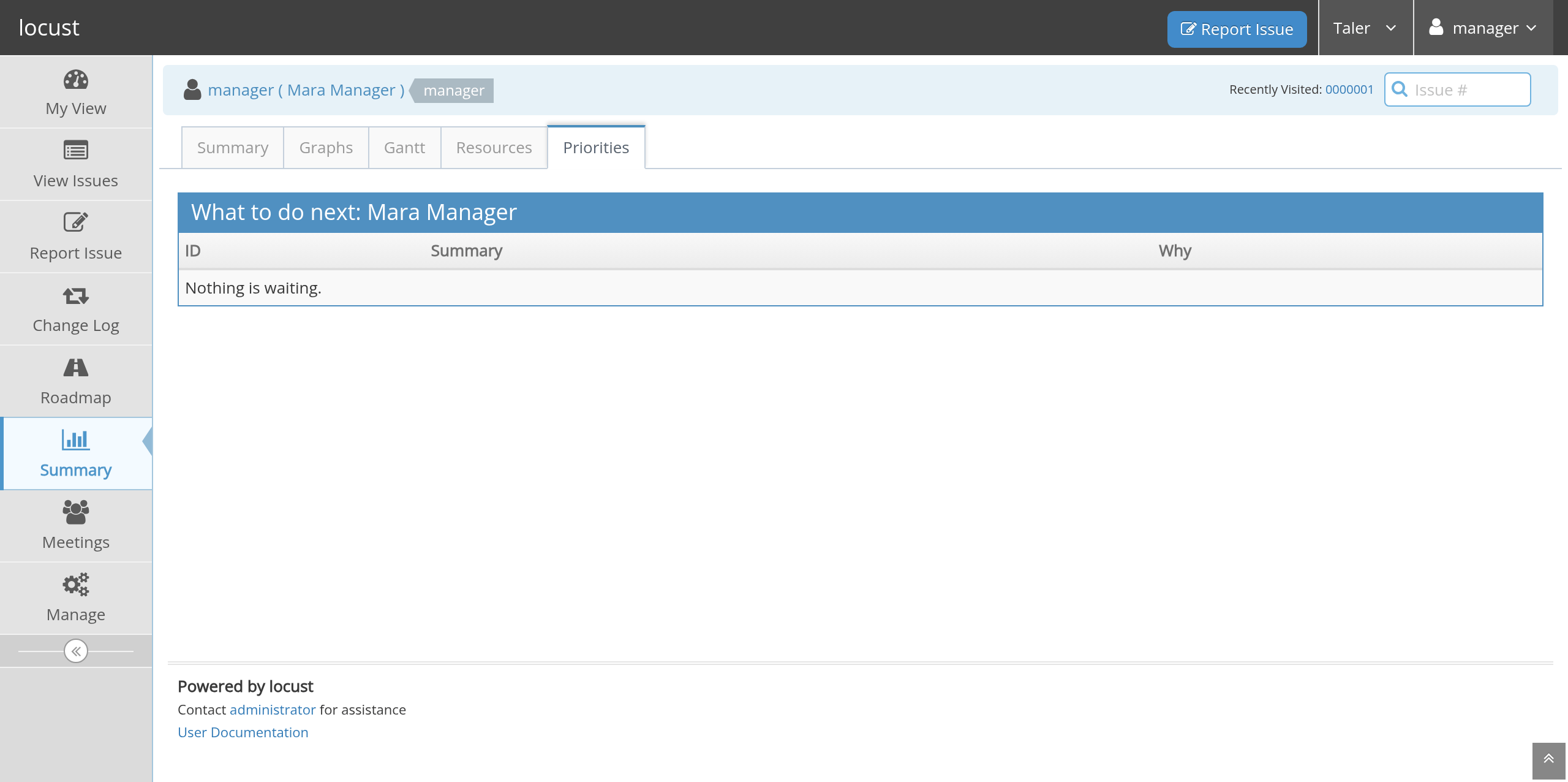
Figure 16 Priorities: the queue, per person, with the reason for each place.#
The Priorities tab of the Summary answers one question – what should
this person do next – and says why for every line, so that the order
is arguable rather than oracular. In order of what outranks what:
A question is waiting for your answer. Somebody is blocked on a minute of your time.
A deadline is pressing. See below.
It blocks other people. The more people, the higher.
The plan is late: the work was wanted by a day that has passed.
Otherwise by severity, priority and age, which is the ordinary order.
The list is per person, and it is a suggestion with its reasoning attached, not an assignment.
Deadlines#
A deadline is MantisBT’s due date, and it means something here. An
issue has its own date, if somebody set one, and it inherits from its
ancestors: a parent due on the 30th that still needs two days of its own
work leaves its children the 28th, because the parent cannot start
before its children are done. The earliest of these is the effective
deadline, and that is what the planning views, the priority queue and
the Due soon box on My View use. The issue page keeps showing the
issue’s own date, as MantisBT does.
How far ahead a deadline begins to press is the project’s deadline window, fourteen days by default. Inside the window the pressure rises as the day approaches and as the work left grows; past the deadline it is at its highest. An issue nobody has estimated gets the proximity but no promise either way, and the reason says so (“due in 3 days, nobody has estimated it”).
The Gantt chart marks each deadlined issue in its own band, and a bar that crosses its mark is work the plan does not finish in time.
Fast-track#
The full process asks an issue to walk twelve states with four pairs of hands on it. That is right for a change an auditor will read about and overkill for a typo in a label. Fast-track is a tick on such an issue: the implementer verifies and closes it themselves, and the control, the release and the deployment steps are not visited.
The rules:
The project must allow it (“Allow fast-track” on the project page).
The issue’s severity must be
trivialortext. A feature request is deliberately excluded.Lowering an existing issue’s severity to trivial or text, in a compliance project, is the management’s decision and nobody else’s – otherwise the person who must not skip the control could arrange to.
Raising the severity later clears the tick in the same breath, and both changes are in the history.
The two authority gates still apply: an issue whose required notification has not been given cannot be closed, fast-tracked or not.
Everything else is unchanged: the issue is reported, planned, acknowledged, confirmed, assigned and implemented exactly like any other. Only the end is short. The issue page says so in the compliance band, so that a reader of a closed fast-tracked issue sees why it has no reviewer instead of wondering.
Questions#
In a compliance project, a note can be put to one person as a question:
the Put this to select under the note form. The issue does not move
– it stays exactly where it was, with whoever had it – and the
question appears on that person’s My View and at the top of their
priority queue. They answer, or you withdraw it.
Use it instead of the feedback status when the issue should not be
parked while one person is asked one thing.
Relationships, duplicates and trees#
The relationships of an issue are on the issue page: related to,
duplicate of, has duplicate, parent of, child of.
Mark the later report a duplicate of the earlier one, not the other way round, and say in a note what the newer one added.
parent ofis the planning relation: the parent is not finished planning while a child is unplanned, and the parent’s deadline constrains the children.A tree can be made in one go by an agent (see below) or by hand with
Add child issue.
Closing#
Resolve with the resolution that is true: fixed, duplicate, won't
fix, no change required, unable to reproduce. In a compliance
project an issue that ends without a change needs a resolution other
than “open” and a reason – the process does not let work disappear
unexplained.
Roadmap and Change Log are built from the target version and the
fixed-in version of issues, so setting those two fields is what makes
those two pages tell the truth.
The roadmap crosses off only what it did not deliver: an issue that
is closed with a resolution other than “fixed” is struck through, and
everything else is ordinary text. MantisBT strikes everything from
resolved on, which makes an issue closed as “won’t fix” read like one
that shipped; here a duplicate, a “won’t fix” and a bug that was
reopened and then closed without being fixed again all stand out at a
glance. The changelog keeps MantisBT’s own rule, because it answers a
different question – what the release shipped – and “reopened” is in
that band.
The three version columns of any issue list sort by the day the
release is scheduled for, not by its name, so a project that dates
its releases in another order than it named them still reads in plan
order; releases with no date, and issues aiming at no release, come
last in both directions. An installation that wants MantisBT’s sort by
name sets VERSION_SORT = name in [locust-ui].
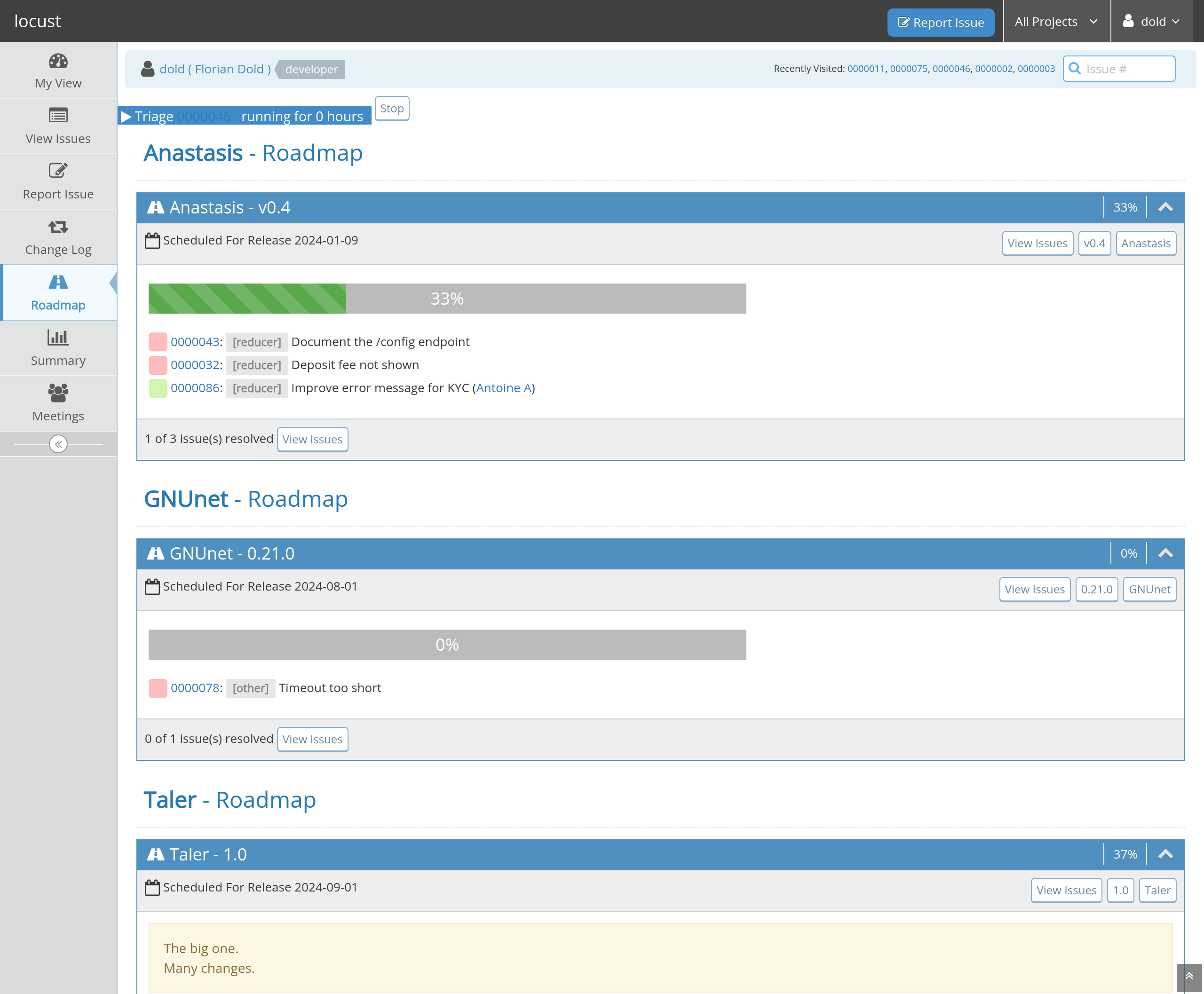
Figure 17 The roadmap: what each release still needs, from the issues’ own target versions.#
Work that comes back, and meetings#
Some of the issues you will be assigned were not filed by a person: a periodic task files them on a schedule – the backup check every week, the year-end closing every year – with their children, roles, estimate and deadline already set. They are ordinary issues; the only difference is the row on the issue naming the task they came from.
Meetings carry an agenda made of issues. Discuss at a meeting on
an issue proposes it for one; whoever runs the meeting accepts it,
rejects it or defers it to the next. The same action records an issue
as discussed at a meeting that has already been held, which is how
“this was settled on Wednesday” gets onto the bug; the issue then names
every meeting it is bound to. What is decided is written in the
minutes, and an entry can be written onto the issue itself, where it
stays with the work.
Meetings is in the menu once the tracker holds one, and My View
lists the next few you are in. Both are a manager’s instruments, and
Managers describes them from that side.
Agents#
A language model can read this tracker as data and file into it, under
the same visibility rules as everybody else: every GET page that shows
data also answers JSON, and /llms.txt tells an agent what it may do.
Writing needs an account, and an agent’s account is marked as one –
its name begins with bot-, its contact address is the human who runs
it, and that human had to confirm it.
What this means for you, reading an issue: an agent’s name is marked as an agent wherever it appears, so you can see at a glance that the reporter is a model and whose it is. An agent never deletes anything and never rewrites somebody else’s words. If one is filing nonsense, the human behind it can switch it off from the mail they were sent, and an administrator can disable the account like any other.
Integrators has the endpoints, the discovery documents and the rules in full.
Conventions worth keeping#
Put the issue number in the commit message.
#123in the tracker links to the issue; a bare number in a commit message is what lets somebody reading history find the discussion.One issue, one piece of work. If a review turns up something else, file it rather than widening the issue in front of you.
Set the target version when you plan and the fixed-in version when you land: the roadmap and the change log are built from nothing else.
Say in a note what you decided and why, especially when you decide not to do something. The tracker is the only place that will still have the reason in two years.